Wednesday, 11 July 2012

Tip to hide the price of the product if Magento user is not logged in

 To show tiered pricing to logged in visitors only, go to: app/design/frontend/default/default/template/catalog/product/view/tierprices.phtml
 
On this file, add this PHP function

  <?php if(Mage::getSingleton('customer/session')->isLoggedIn()): ?>
 
The above function should be added before the following piece of code 

<?php if (count($_tierPrices) > 0): ?>
 
Then add this code at the end.
 
  <?php endif; ?> 

Add a contact form to a Magento CMS page

Of all Magento tips, this one solve a very frequent problem. Your clients will want to get a contact form to which they can add bits of text, they’ll also want to have the breadcrumb menu shown for that contact page. Out of the box, the Magento contact form doesn’t allo this, to do it you just have to follow this procedure.
Go to your CMS> Manage Pages interface
Once there, input your HTML as you normally would on any other page
Once you are happy with HTML part, add this lines

<!– CONTACT FORM –>
{{block type="core/template" name="contactForm"
 form_action="/contacts/index/post" template="contacts/form.phtml"}}
<!– END OF CONTACT FORM –>

how to show new products on homepage magento

New products:-

Go to “CMS - Manage Pages” and select “Home Page” from the list of pages.
Use this code snippet to show products labeled as “new” on your front page:

{{block type="catalog/product_new" name="home.catalog.product.new" alias="product_homepage" template="catalog/product/new.phtml"}} 


All Products:-

Go to “CMS - Manage Pages” and select “Home Page” from the list of pages.
Use this code snippet to show all products in your catalog on your front page


{{block type="catalog/product_list" name="home.catalog.product.list" alias="products_homepage" template="catalog/product/list.phtml"}}

All Products from one Category:-

Go to “CMS - Manage Pages” and select “Home Page” from the list of pages.
Use this code snippet to show one category on your front page

{{block type="catalog/product_list" name="home.catalog.product.list" alias="products_homepage" category_id="4" template="catalog/product/list.phtml"}}


how to add css and js in magento

first put your css and js in your project and and path is:-
skin\frontend\default\default  in css folder paste your css and make js folder this path and paste your js

and after call in head.phtml

 open this path  app\design\frontend\base\default\template\page\html\head.phtml
 and and of the page in  head.phtml

css link:-
<link href="<?php echo $this->getSkinUrl('css')?>/yourcssname.css" type="text/css" rel="stylesheet" />
js link:-
<script src="<?php echo $this->getSkinUrl("js")?>/yourjsname.js" type="text/javascript"></script>

Saturday, 7 July 2012

How to add Currency selector to Magento’s header

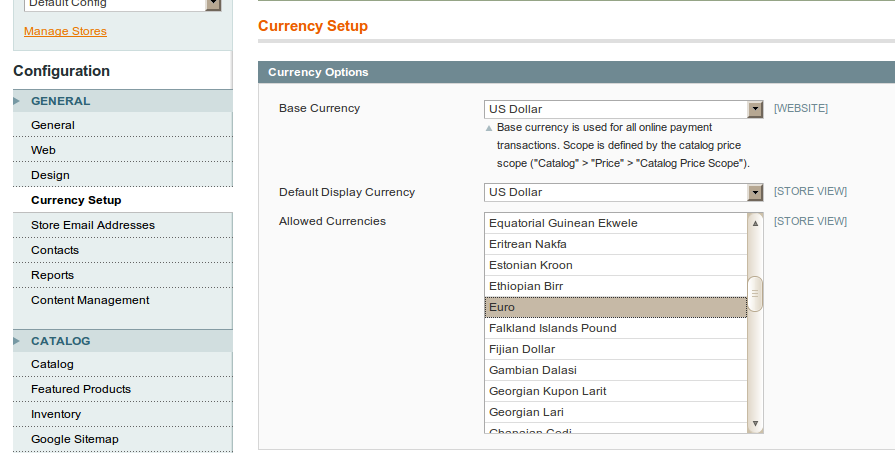
Magento ’s  Admin “System->Configuration” menu, you have “Currency Setup” tab. There You should select default site currency, and besides that, And Selected Multiple Currencies from in Allowed Currencies Drop Down.


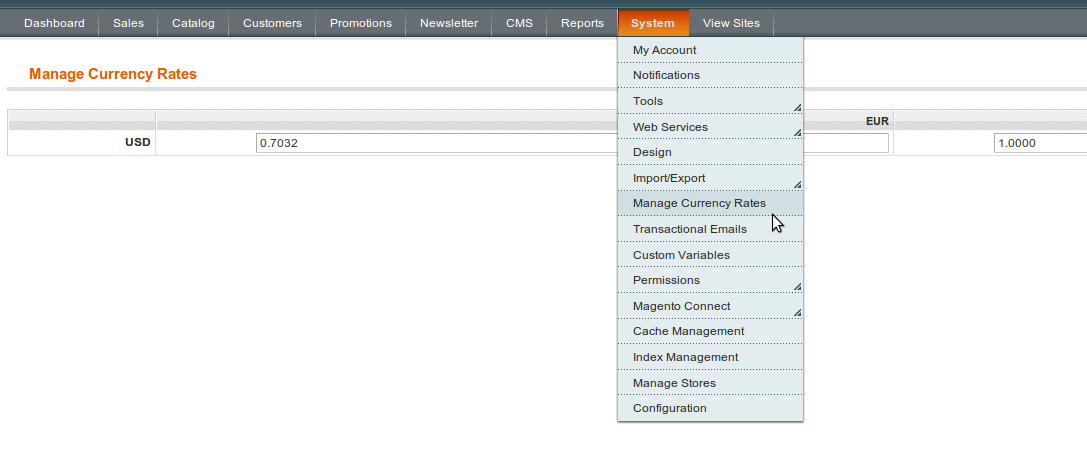
After that you should go to menu item under “System->Manage Currency Rates”. And set rates between values you’ve chosen before. And here’s how it looks like:

And Currency Convertor define in left column .if you want show in header then make a static block .Go to your CMS> Static Block> Add New Block. Put below xml in content part
{{block type="directory/currency" name="currency" before="catalog.leftnav" template="directory/currency.phtml"}}
And Call this Staic  Block your header. And call method Is->
<?php echo $this->getLayout()->createBlock('cms/block')->setBlockId('your identifier code')->toHtml() ?>

Friday, 6 July 2012

particular category show product in magnto

Open your ftp editor and go to app => design => frontend => base => default => template => catalog => product and create new php file called “yourfilename.phtml”. (considering that you are using default theme {change theme name and path according to your current selected theme})
Put the following code in yourfilename.phtml

<?php
$_productCollection=$this->getLoadedProductCollection();
$_helper = $this->helper('catalog/output');
if ($_productCollection->count()):
$_iterator = 0;
 
foreach ($_productCollection as $_product): ?>
 
<div> <a href="<?php echo $_product->getProductUrl() ?>" title="<?php echo $this->stripTags($this->getImageLabel($_product, 'small_image'), null, true) ?>"><img src="<?php echo $this->helper('catalog/image')->init($_product, 'small_image')->resize(145); ?>" width="120" height="120" alt="<?php echo $this->stripTags($this->getImageLabel($_product, 'small_image'), null, true) ?>" /></a>
<p><?php echo $_helper->productAttribute($_product, $_product->getName(), 'name') ?></p>
<p><span><?php echo $this->getPriceHtml($_product, true) ?></span></p>
<p><a href="<?php echo $_product->getProductUrl() ?>" title="<?php echo $this->stripTags($_product->getName(), null, true) ?>"><img src="images/more-info.gif" width="110" height="30" alt="More Info" /></a></p>
</div>
 
<?php endforeach; // end products loop ?>
<script type="text/javascript">decorateList('products-list', 'none-recursive')</script>
<?php endif; // if product collection ?>

Finally we will call this piece of code on our store’s home page. Go to Admin => CMS => Pages and edit your store’s selected home page.


{{block type="catalog/product_list" category_id="179" 
template="catalog/product/yourfilename.phtml"}}
 

Magento: Get store information

 Get store data
    Mage::app()->getStore();

    Store Id
    Mage::app()->getStore()->getStoreId();

    Store code
    Mage::app()->getStore()->getCode();

    Website Id
    Mage::app()->getStore()->getWebsiteId();

    Store Name
    Mage::app()->getStore()->getName();

    Is Active
    Mage::app()->getStore()->getIsActive();

    Store Home Url
    Mage::app()->getStore()->getHomeUrl();